Setup & fixes
Firestick Not Working? Every UK Streaming Fix, Tested
A Firestick not working, a stream that stalls, a remote that has died — almost every streaming problem in a British home comes down to one of four things: Wi-Fi, power, storage or a lost Bluetooth pairing. This hub collects the step-by-step fixes, and starts with the diagnostic order that tells you which of the four you are dealing with — because guessing wastes an evening.
The short answer
- Buffering is bandwidth. Lag is storage. They feel similar and differ entirely.
- Wi-Fi is the bottleneck in most homes, not the broadband line.
- Underpowered sticks cause faults that look like everything else.
- Failures only during live football mean an unlicensed source, not a fault.
Streaming troubleshooting online is mostly a list of things to try in no particular order, which is why people end up factory-resetting perfectly healthy devices. The problem is not a shortage of fixes; it is a shortage of diagnosis.
This hub is organised the other way round. It starts with a method for identifying which part of the chain is failing, because the symptom genuinely does tell you — a picture that goes soft means something quite different from a picture that freezes, and both mean something different from menus that respond slowly.
Everything here has been tested on real hardware: a Fire TV Stick 4K Max, a Fire TV Stick HD, a Sky Stream puck, a Humax Freely box and a Samsung smart TV, on a 67 Mbps FTTC line in south London.
Firestick not working, or something else? What kind of problem is it
Four categories, each with a distinct signature. Identify yours before trying anything. If you have not chosen a service yet, start at the beginning instead.
| Symptom | Category | Where to look |
|---|---|---|
| Video pauses to load, spinner appears | Bandwidth | Wi-Fi first, then the broadband line. Not the device. |
| Picture goes soft, then recovers | Bandwidth | Normal adaptive behaviour. Constant softness means you are short of headroom. |
| Menus slow, apps take ages to open | Storage | The device is short of space. Clear the caches. |
| Remote does nothing at all | Pairing | Bluetooth bond lost. Re-pair it. |
| Random reboots, Wi-Fi drops under load | Power | Almost always a stick drawing from a TV USB port instead of the mains. |
| One channel fails, everything else fine | Server-side | Nothing you can fix. Report it to the provider. |
| Fails only during live football | Legal | Court-ordered blocking of an unlicensed source. See the legal position. |
What fixes most streaming problems?
Before working through any specific guide, these four cover the overwhelming majority of complaints. Together they take about half an hour. Run them in this order every time: a Fire stick not working almost never needs anything more drastic, and skipping straight to a factory reset loses your apps for nothing.
Power the device from the mains, not the television
A TV’s USB socket is built for a memory stick, not for a small computer running flat out. The resulting faults are intermittent and confusing — random reboots, Wi-Fi dropping mid-stream, Bluetooth remotes disconnecting — and they get blamed on everything except the power supply. Use the adapter that came in the box, into a wall socket.
Use the HDMI extender, or wire the device
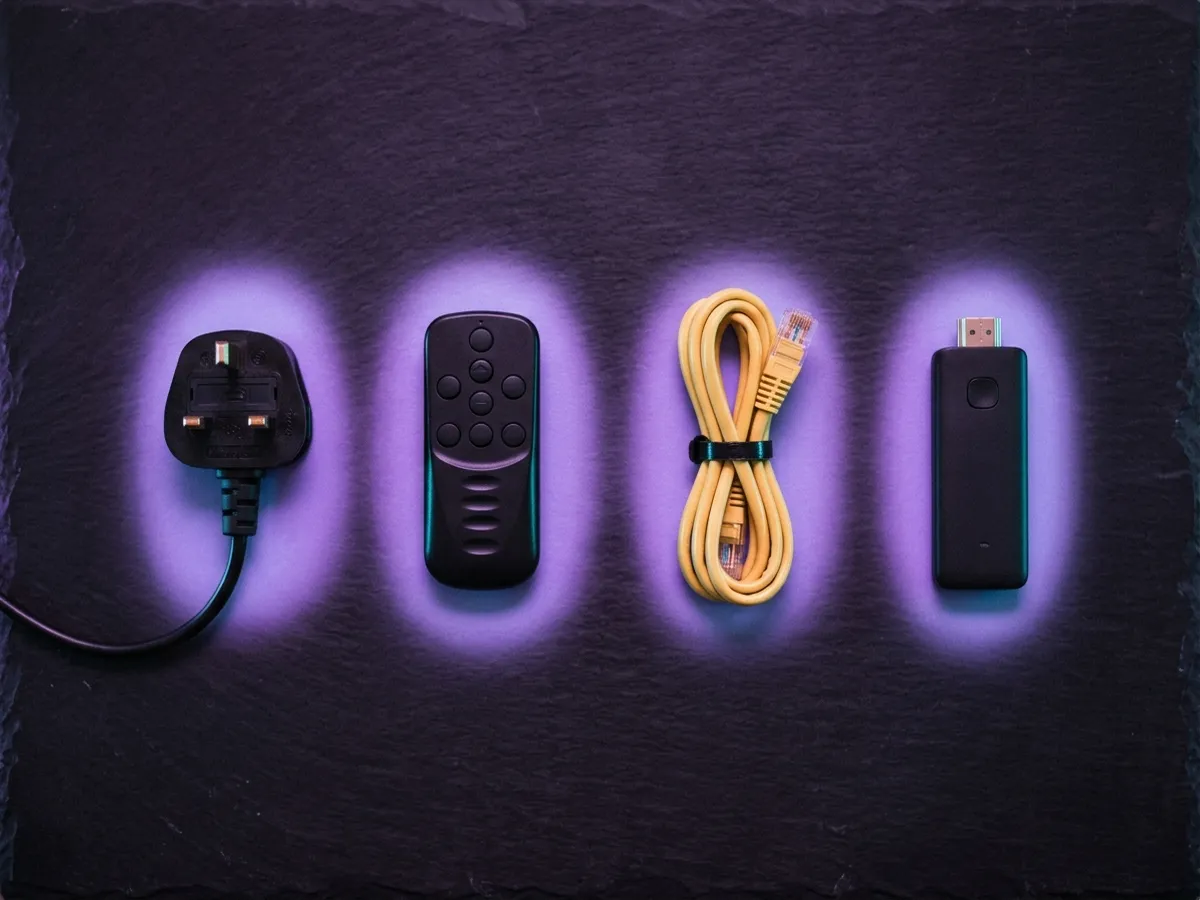
A stick plugged directly into a recessed HDMI port sits inside the television’s metal chassis, right around its aerial. The short extender in the box moves it clear. A £15 Ethernet adapter goes further still, taking wireless out of the equation altogether.
Move to the 5 GHz Wi-Fi band
If your router publishes separate 2.4 GHz and 5 GHz network names, join the 5 GHz one. It is faster and dramatically less congested, which matters far more than your broadband speed. In a block of flats, 2.4 GHz is close to unusable in the evening.
Clear app caches and free up storage
Keep at least 1.5 GB free. Below that, everything slows down. Clearing the caches on your five most-used apps takes five minutes and typically recovers 500 MB to 2 GB.
If those four do not resolve it, the specific guides below go considerably deeper.
How do you diagnose a buffering problem?
Most people test their broadband speed on a laptop next to the router and conclude the line is fine — the speed a stream actually needs sets out the real figures. That test answers the wrong question.
Test at the device, not at the router
Many streaming devices have a built-in network test, or you can install a speed test app. What matters is throughput where the streaming actually happens, which in a typical house is a great deal less than at the router.
Test at peak time
Run it at 9pm on a weekday, then again late at night. If evening speeds collapse, you have local congestion — a broadband problem to raise with your provider, not something any device setting will fix.
Compare Wi-Fi against a cable
Test on Wi-Fi, then plug in Ethernet and test again. If the wired figure is dramatically better, the fix is a cable or a better access point, not a faster package.
Check what else is using the line
Cloud backups, game console updates and other streams all compete. A 4K stream needs about 30 Mbps to itself.
| Quality | Comfortable line speed | Data per hour |
|---|---|---|
| SD 480p | 5 Mbps | ~1 GB |
| HD 720p | 8 Mbps | ~1.8 GB |
| Full HD 1080p | 12 Mbps | ~3.5 GB |
| 4K HDR | 30 Mbps | ~9 GB |
| Two 4K streams | 60 Mbps | ~18 GB |
Consistency matters more than the headline number. A steady 40 Mbps outperforms a 200 Mbps line that drops to 5 Mbps every few minutes, because adaptive bitrate reacts to what it measures moment to moment. The mechanism is explained fully in our guide to how IPTV works.
Which streaming problems are not your fault?
Worth recognising these early, because no amount of troubleshooting will help. Where the device itself is genuinely past it, which Firestick model to buy and what a smart TV can still do are the two replacement questions, and our plan list covers the service side.
- One channel fails while others work. That channel’s origin server or CDN edge has a problem. Report it; there is nothing to fix locally.
- Everything fails at the same time for everyone. Check the provider’s status page and social media. Platform outages happen.
- Streams cap at 540p in a browser but play 4K on the telly. Widevine DRM security levels. Expected behaviour, not a fault.
- Quality drops during a major live event. Unicast platforms must scale capacity with audience. NOW in particular has historically wobbled during title deciders.
- A service works all week and fails every Saturday at three. This is the signature of an unlicensed source being cut off by a live High Court blocking order.
What should you not do when a Firestick stops working?
Do not reach for the factory reset first. It erases every app and sign-in, almost never cures what clearing the cache would not, and leaves a misbehaving remote exactly as it was, because the remote resets separately. Skip the so-called booster and cleaner apps too — they add clutter, not speed.
Four pieces of common advice that are actively counterproductive.
| Bad advice | Why it is wrong |
|---|---|
| "Factory reset the device" | Wipes every app, sign-in and setting, and rarely fixes anything that cache clearing does not. It also does not reset a Bluetooth remote, which is a separate device. |
| "Install a booster or cleaner app" | These do nothing the built-in cache clearing does not do, and many are adware. Fire OS does not benefit from third-party memory managers. |
| "Upgrade your broadband package" | Usually the wrong fix. In most homes the bottleneck is Wi-Fi, not the line. Try a £15 Ethernet adapter before committing to a higher monthly bill. |
| "Use a VPN to stop buffering" | A VPN adds a hop and encryption overhead — it makes streaming slower, not faster. It also does nothing about the legality of an unlicensed source. |
The broadband one is worth dwelling on because it is the most expensive mistake. People routinely pay more every month for a faster line when a one-off £15 cable would have solved the problem outright.
How do you fix streaming buffering?
If bandwidth is your category, the fix is almost never a faster broadband package. It is the last ten metres between the router and the television, and British housing stock is unusually hostile to it.
Why UK homes are difficult
Solid brick internal walls, lath-and-plaster in older properties, foil-backed insulation in newer ones, and in flats a dense forest of neighbouring networks all competing on the same channels. A router in the hallway cupboard — where the phone line arrives — is frequently in the worst possible position in the house.
The 2.4 GHz band travels further through walls but is heavily congested and slow. The 5 GHz band is much faster and cleaner but has considerably less range and does not penetrate masonry well. Most streaming problems in British homes come down to a device sitting on 2.4 GHz because 5 GHz cannot reach it.
What to do, in order of effectiveness
| Fix | Cost | How much it helps |
|---|---|---|
| Run an Ethernet cable to the device | ~£8–£15 | Complete. Removes the variable entirely. Ugly but definitive. |
| Powerline adapters | ~£40–£60 | Very good in most homes. Uses the mains wiring. Performance depends on the ring main. |
| Move the router | Free | Substantial if it is currently in a cupboard. Central and elevated is best. |
| Join the 5 GHz network explicitly | Free | Large, if the device is in range. Many routers hide this behind one merged name. |
| Mesh Wi-Fi system | ~£100–£250 | Very good across a whole house. Overkill for one problem room. |
| Wi-Fi extender | ~£25–£40 | Mixed. Halves throughput on cheap single-band units. Buy dual-band or skip it. |
| Faster broadband package | £5–£20/month forever | Usually nothing. If the bottleneck is Wi-Fi, more line speed changes nothing. |
One setting worth changing
Many UK routers ship with "band steering" enabled, publishing 2.4 GHz and 5 GHz under a single network name and deciding for you which a device uses. In theory this is convenient. In practice, devices frequently latch onto 2.4 GHz and stay there long after they have moved back into 5 GHz range.
Splitting the bands into two separately named networks in the router settings, then joining the 5 GHz one explicitly on your streaming device, resolves a surprising amount of intermittent buffering. It costs nothing and takes five minutes.
How often should you maintain a streaming device?
A quick cache clear every three months, and a slightly longer tidy twice a year, prevents most of the faults on this page. Five minutes on your most-used apps, plus a check that at least 1.5 GB of storage is still free, is usually all it takes.
Monthly, and it takes five minutes
Almost everything on this page is preventable. Twenty minutes twice a year keeps a streaming setup behaving as it did when it was new.
| How often | Do this | Takes |
|---|---|---|
| Every 3 months | Clear caches on your five most-used apps. Check free storage is above 1.5 GB. | 5 minutes |
| Every 6 months | Uninstall anything you have not opened. Check for a system update. Replace remote batteries. | 10 minutes |
| Every 12 months | Re-test speeds at the device at peak time. Re-check which Wi-Fi band each device is on. | 10 minutes |
| When it feels slow | Restart properly — from the menu, or unplug for 60 seconds. Not the TV power switch. | 2 minutes |
| When prices change | Review subscriptions. Check nothing is billing for a service nobody uses. | 10 minutes |
The last row is not a technical fix but it is the one that saves the most money. Streaming subscriptions accumulate quietly, and the most common finding when people audit them is a Boost add-on or a content pack still billing months after the thing it supported was cancelled.
The one-off jobs worth doing once, properly
- Fit the HDMI extender on every stick in the house. Five minutes, permanent improvement.
- Move every streaming device onto mains power. Never a television USB port.
- Split your Wi-Fi bands into separately named 2.4 GHz and 5 GHz networks, and join devices to 5 GHz explicitly.
- Run one Ethernet cable to whichever device does the most 4K viewing.
- Turn off home-screen autoplay on every device that has it.
- Put streaming devices on a guest network if your router supports one — free isolation from the rest of your home network.
Done once, these remove the underlying causes of the majority of complaints in this hub rather than treating the symptoms each time they recur.
Every guide in this hub
Each walkthrough below is written against real hardware and ordered by how often each fix actually succeeds.
Firestick remote not working
The complete fix list for a dead Fire TV remote, ordered by how often each one actually works. Tested on real hardware.
Speed up a slow Firestick
A sluggish stick is a storage problem, not a dying one. The full maintenance routine that restores it, step by step.
Cancel NOW TV
The exact route through NOW’s account settings, what the retention offers are actually worth, and the timing trick that costs you nothing.
Sky remote not working
The complete fix list for a dead Sky Q remote, ordered by how often each one actually works. Plus how to tell when it is the box, not the remote.
Cancel Sky TV
The 31-day notice rule, what leaving early actually costs, and how the retention conversation really works.
Set up IPTV from scratch
The complete first-time setup: choosing a service, picking hardware, wiring it properly and getting a picture on screen.
Internet speed for streaming
Ten megabits for HD, thirty for 4K — per stream. And why the fast line you pay for still stalls at nine in the evening.
If the problem turns out to be the hardware itself rather than its configuration, our streaming device guide covers what to replace it with — and when replacing is genuinely warranted rather than premature.
Starting from scratch rather than fixing something? Our walkthrough on setting up IPTV from scratch covers the whole process, from choosing a service through to the first evening of sign-ins.
Frequently asked questions
What is the best fix streaming buffering approach on a slow line?
Drop the resolution before anything else. A 1080p stream on a marginal connection is watchable where 4K is not, and most apps let you cap quality in settings. After that, wired beats wireless every time — the single most effective fix streaming buffering step is an ethernet cable.
Where do I start with streaming device troubleshooting?
Establish whether the problem is the device, the connection or the service. If one app fails and others work, it is the service. If everything fails on one device, it is the device. If everything fails everywhere, it is the connection — and that is where most streaming device troubleshooting should begin.
Why is my Firestick not working properly all of a sudden?
Four causes cover almost all of it: storage pressure on an 8 GB stick, a Wi-Fi signal that is weaker than it looks, a pending software update, or the service itself being down. Work through them in that order — a Fire stick not working is far more often the connection than the hardware.
What is the quickest IPTV buffering fix?
Move the device to 5 GHz Wi-Fi, or better, run an ethernet cable. Buffering is a bandwidth problem in the large majority of cases, and no amount of clearing caches or reinstalling apps will fix a connection that cannot sustain the bitrate.
Firestick not working on Wi-Fi — extender or powerline adapter?
Powerline, in most British homes. It carries the signal over the mains wiring rather than repeating a weakening radio signal, so throughput holds up far better. Cheap single-band Wi-Fi extenders halve available bandwidth because they receive and retransmit on the same channel. A wired Ethernet cable beats both, if you can run one.
Should I split my Wi-Fi into separate 2.4 GHz and 5 GHz networks?
For streaming devices, yes. Many UK routers merge both bands under one name and decide for you, and devices frequently latch onto the slower 2.4 GHz band and stay there. Splitting them in the router settings and joining the 5 GHz network explicitly resolves a lot of intermittent buffering, costs nothing and takes five minutes.
Why does my streaming keep buffering?
Buffering means the player ran out of buffered video, which is a bandwidth problem rather than a device problem. In most British homes the bottleneck is Wi-Fi rather than the broadband line — a wired Ethernet connection or a move to the 5 GHz band resolves the majority of cases.
What is the difference between buffering and lag?
Buffering is video pausing to load, and it is caused by insufficient or unstable bandwidth. Lag is the interface responding slowly to your remote, and it is caused by the device running short of storage. They feel similar and have completely different fixes.
How much internet speed do I need for streaming?
About 8 Mbps per HD stream and 30 Mbps per 4K stream, measured at the device rather than at the router. Stability matters more than the headline figure: a steady 40 Mbps outperforms a 200 Mbps line that drops repeatedly.
Why does my streaming stick keep restarting?
Almost always insufficient power. Sticks plugged into a television’s USB port frequently cannot draw enough current under load. Move it onto the supplied mains adapter and a wall socket, and the restarts generally stop at once.
Should I factory reset my streaming device?
Rarely. It wipes every app, sign-in and setting while fixing little that clearing caches does not. It also does not reset a Bluetooth remote, which is a separate device with its own reset procedure. Treat it as a last resort.
Will a VPN stop buffering?
No — it makes streaming slower. A VPN adds an extra network hop and encryption overhead, both of which reduce available throughput. It also has no bearing on whether a service is licensed, which is a separate question entirely.
Why does my service only fail during football matches?
That is the signature of an unlicensed source. Unlicensed services are cut off live during big matches by court-ordered blocking, and nothing you change at home can get round it. No troubleshooting on your side will change it.
This page is part of our Setup & fixes hub.
See all setup & fixes guides